
Getting Started
Peachy gives you a component-based UI, instant previews as you code, scoped styles, and automatic asset bundling so you can focus on shipping your app, not your toolchain.
Quick Start
Section titled “Quick Start”Prerequisites
Section titled “Prerequisites”Before you start, make sure you have the following installed:
- Node.js (Node.js also comes with npm, check with
node --version) - GJS (it’s probably pre-installed on most linux distros, check with:
gjs --version)
Create a new project
Section titled “Create a new project”Create a new Peachy project by running the following command in your terminal:
npm create peachy@latestThis will create a new project directory with all the necessary files and configurations for your app.
Start the development server
Section titled “Start the development server”When working locally, Peachy’s development server lets you preview your work and automatically refreshes your application when you make changes.
Inside your project directory, run the following command to start the development server:
npm run devThis will automatically start your application.
Add functionality
Section titled “Add functionality”Your application is now ready for you to add more functionality, you can try editing the application’s code to see how it refreshes in real-time.
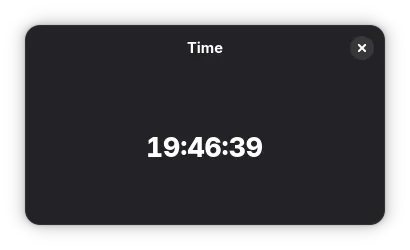
You could update the code in src/counter.tsx to display a clock instead.
import Adw from "gi://Adw?version=1";import GLib from "gi://GLib?version=2.0";import Gtk from "gi://Gtk?version=4.0";
import { useEffect, useState } from "react";
function getTime() {  return GLib.DateTime.new_now_local()?.format("%H:%M:%S") ?? "";}
export function Counter() {  const [time, setTime] = useState("");
  useEffect(() => {    const interval = setInterval(() => {      setTime(getTime());    }, 1000);
    return () => clearInterval(interval);  }, []);
  return (    <Adw.ToolbarView>      <Adw.HeaderBar $type="top" />      <Gtk.Label cssClasses={["title-1", "numeric"]} hexpand label={time} />    </Adw.ToolbarView>  );}
Your application should now display a clock.
Next steps
Section titled “Next steps”- Read about how-to guides in the Diátaxis framework